

Stop downloading data just to run a report
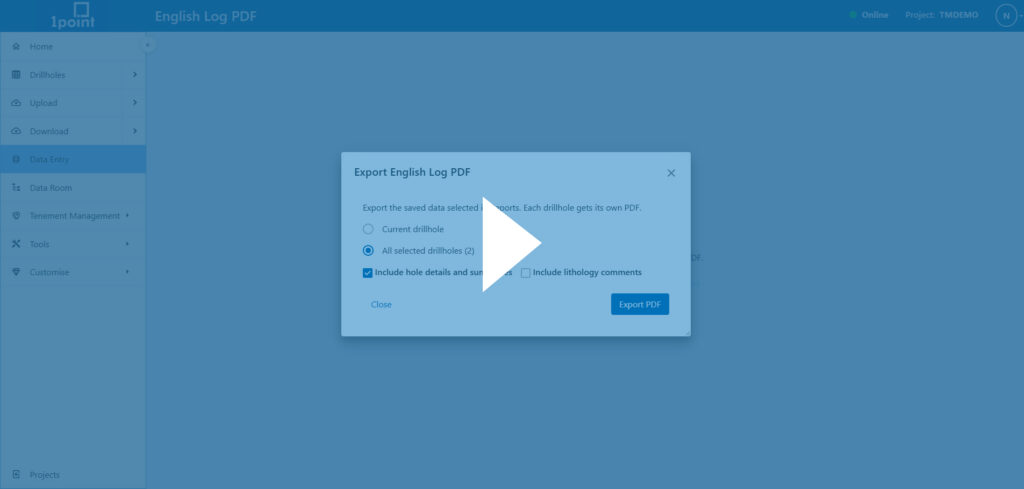
Standard reports are now built directly into 1point, so you no longer need to download your data into other software just to generate one. The suite includes header and lithology summaries, english logs, graphic logs, core photos, well completion reports, seam summaries, validation error reporting, and geophysical details, among others. There are also hole statistics covering things like total metres drilled and average seam thickness across your project. Every report links back to the source data in data entry or the LAS manager, so if something needs correcting, you can jump straight in and fix it without hunting for the record yourself.
Reports can be customised too. Trim a lengthy report down to just the columns you need, then save it as your own template. Export your reports as Excel, CSV, or PDF.
Try it today, or check out our video to see the full reports suite in action.
A cleaner way to get data out of 1point
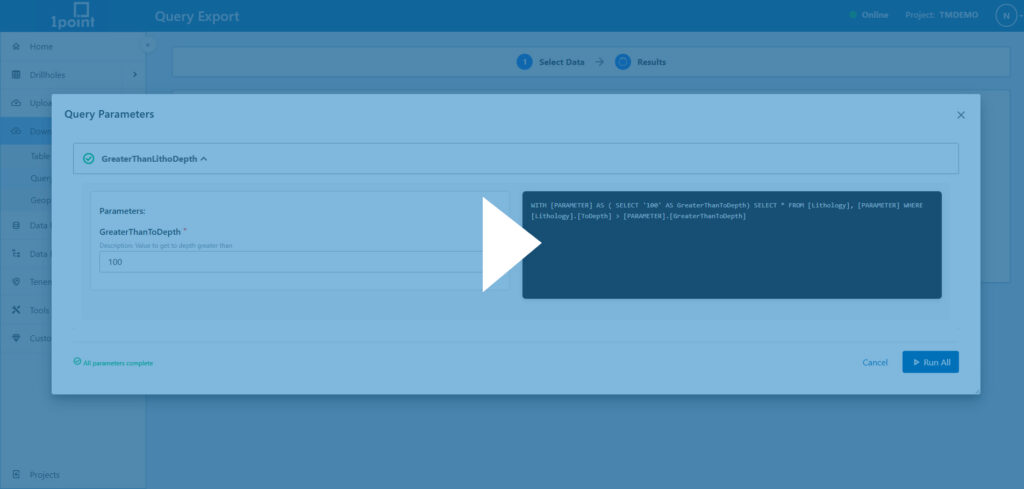
Exporting data in 1point is now split into two dedicated tools: table data export for simple downloads, and query export for running more advanced downloads from saved queries. Table export is the quickest path when you just need raw table data as CSV, Excel, or SQLite database. Alternatively, you can execute one or several queries once, and download your results as a ZIP, CSV, or Excel file. Whichever tool you need, your data is only ever a couple of clicks away.
Watch how it works in our export tools video.
1point querying all in one place
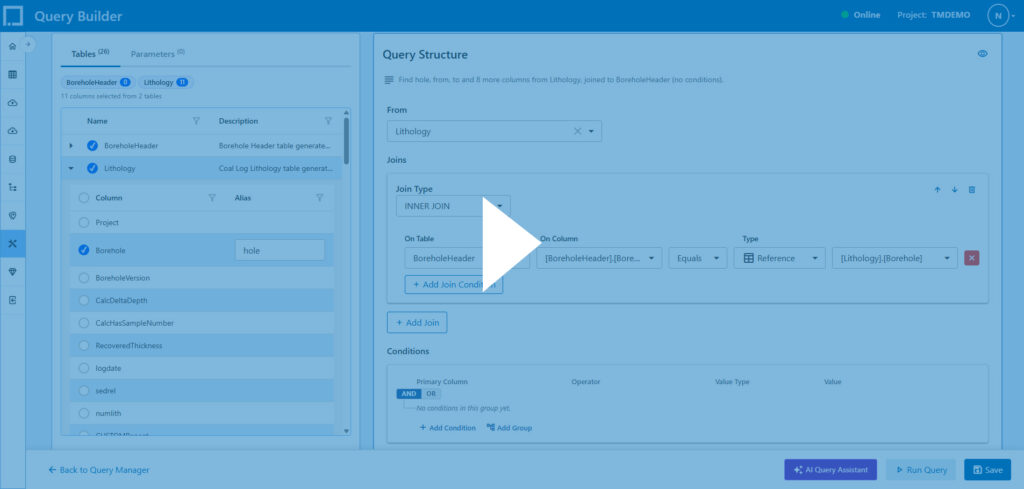
Query manager is now the single home for every saved query in 1point. Build your conditions, define the scope, and preview the results, seeing exactly how many records and drillholes match, before you export, tag, or run anything. The simple builder now supports grouping of OR conditions alongside AND, so you can build more complex logic without switching to advanced builder. Every saved query shows a plain-English summary of exactly what it does, and you can use the same query straight from drillhole tags or query export. One query, built once, reusable anywhere in 1point.
Watch how it works in our querying in 1point video.
Independently penetration tested. No high or critical-risk findings
We had 1point independently penetration tested by Volkis, covering the web application and associated API endpoints. During the engagement, Volkis was unable to compromise the application, and no high or critical-risk vulnerabilities were identified.
Two findings were reported. One was a medium-risk issue involving the platform’s email functionality: an authenticated user could manipulate a request to send an email to a recipient of their choosing. This did not involve unauthorised access to customer or project data. The issue has been fixed and independently retested by Volkis, who confirmed it is now closed and no longer poses a risk.
The second finding was originally rated low risk and related to ZIP processing. During the retest, Volkis confirmed that the relevant server-side protection was already in place, reclassified the finding as a false positive, and closed it.
Alongside the pentest, this release also strengthens security in a few places that don’t wait for a test to matter. Permission checks for viewing, editing, downloading, sharing, or deleting company and project data are tighter, and now account for access changes that happen after a page or session is already open. Data room invitations now grant access to only the specific file or folder shared, rather than wider company or project access, and removing someone’s project access automatically clears their associated folder permissions too. Uploaded filenames, archive contents, spreadsheets, and images go through further checks to help reject unsafe files and oversized requests. Two-factor authentication settings are stronger too: disabling 2FA or resetting an authenticator now requires your current password.
That’s what independent testing is for, not to declare nothing’s there, but to prove that when something is, it gets found, fixed, and checked again.
Changes to our privacy policy
Here’s what you need to know:
- Written specifically for 1point – the new one explains exactly how 1point handles your data, not just general legal language.
- New AI Query feature explained – if you use 1point’s AI Query tool, the policy now spells out exactly what gets sent to OpenAI (your prompt, recent chat history, and database structure – not your actual data rows) and confirms it’s never used to train AI models.
- Full list of who we share data with – a clear table naming every service provider (Microsoft Azure, Stripe, LiveChat, Google, LinkedIn, HighLevel) and what each one does with your information.
- Where your data lives – confirms 1point’s core hosting and backups sit in Microsoft Azure’s Australia Southeast region, with clear notes on which activities (like support chat or billing) may involve overseas providers.
- Clearer security detail – specifics on encryption, multi-factor authentication, and access controls, instead of general statements.
- Easier to find answers – organized into clear numbered sections covering cookies, data breaches, retention, and how to access or correct your information.
1point’s tenement automation just crossed the Tasman
1point’s tenement automation now extends to New Zealand. Automatic lookups, watch list alerts, and task tracking have so far only applied to Australian tenements. With this update, the same features are available for New Zealand tenements too, giving teams working across both jurisdictions the same watch lists, custom task alerts, and compliance tracking without manual setup.
See how tenement management works in 1point in our walkthrough video, which covers adding tenements, setting up watch lists, linking environmental authorities, and configuring task alerts.
If you’ve used 1slate, a lot of this will feel familiar. 1point’s tenement manager feature is built from the same principles. For a broader look at tenement management concepts and best practice, you can check out the 1slate resources.
Modelling drillhole trajectory the industry-standard way
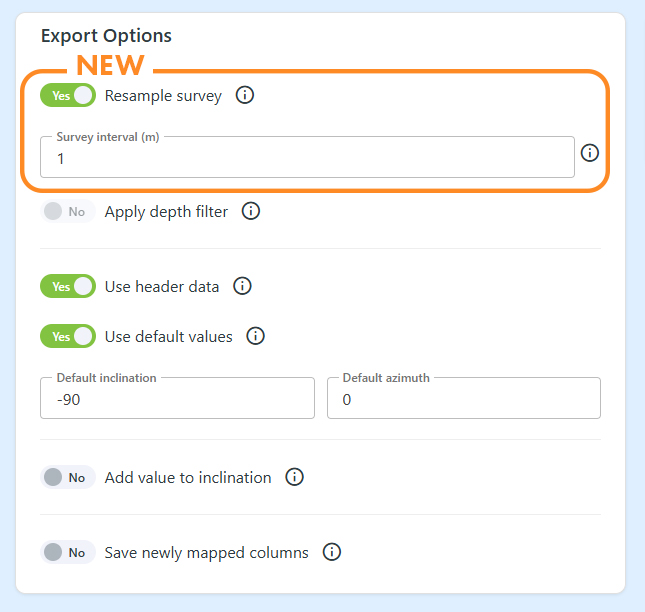
1point’s survey data now uses the minimum curvature algorithm, an industry-standard method for modelling drillhole trajectory with precision.
Select multiple drillholes, define a survey interval, and 1point recalculates dip and azimuth values at that interval automatically. The result is a smoother, more accurate model of each hole’s actual path, with less data to manage and without sacrificing the accuracy of the underlying method.
To learn more about exporting survey data in 1point, check out our video guide.
Pick up right where you left off
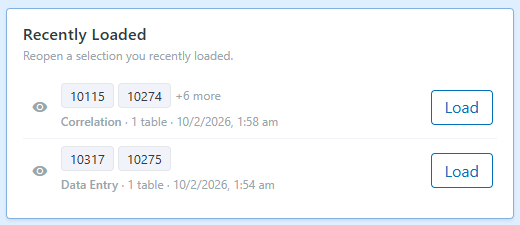
1point now remembers your individual recent data entry, correlation or explorer sessions. From your project dashboard or the load data window in data entry, you’ll see a list of what you were last working on, including how many drillholes and tables were involved and when, so getting back into an open session takes one click instead of rebuilding your selection from scratch.
Select drillholes from a file or clipboard
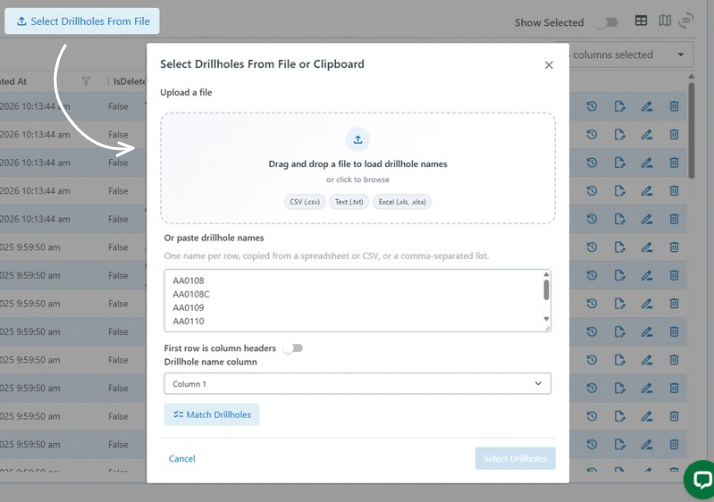
Selecting bulk drillholes is now much simpler. From the drillholes page, upload a file or paste a list of drillhole names straight from your clipboard. Choose whether to add the matched drillholes to your current selection or replace it entirely, and you’re ready to move on to tagging, exporting, or whatever comes next.
See your project at a glance, even at 10,000 drillholes
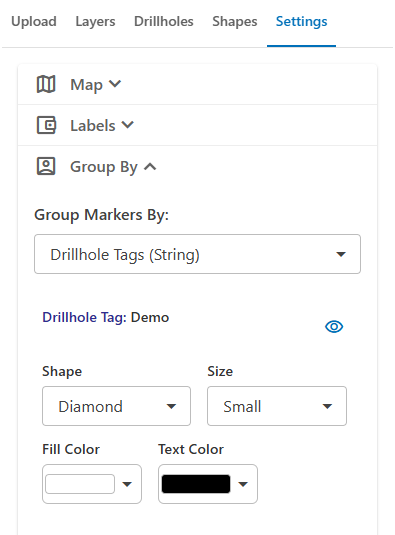
Map markers can now be coloured by drillhole tag. Group by tag from the Group By menu, and each tag gets its own marker colour, configurable from the map customisation list, so patterns across your project are visible at a glance rather than something you have to dig for.
The map has also gotten significantly faster. Where it previously handled a few thousand drillholes comfortably, it now supports approximately 10,000, so larger projects stay responsive instead of slowing down as your dataset grows.
Inviting someone new just got more flexible
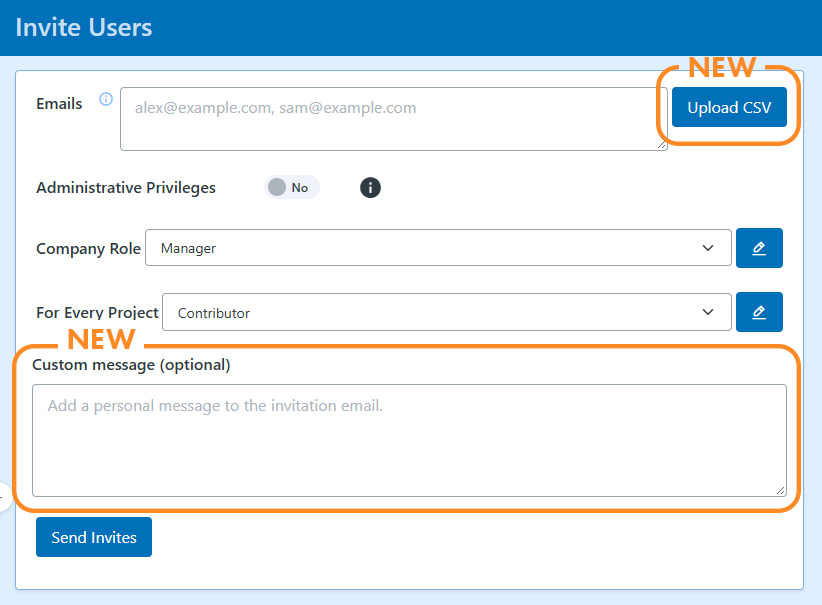
Inviting people to a project is now more flexible, wherever you do it from. Queue up invitations while you’re still setting up a new project, without needing to navigate to the separate invite users page.
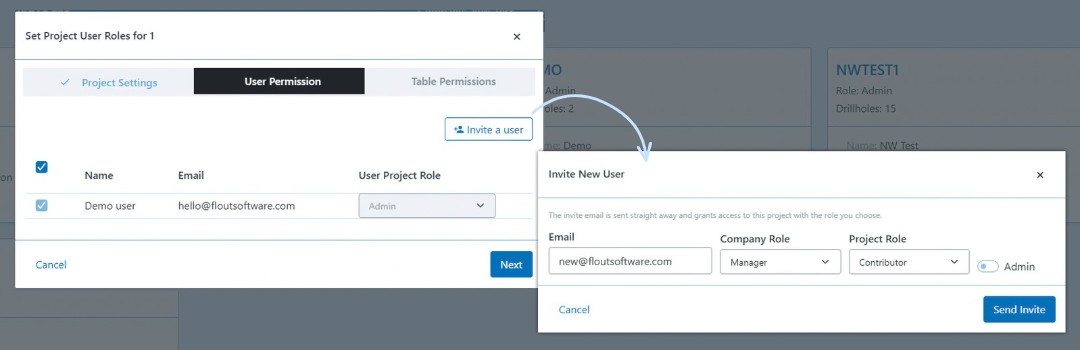
You can also bulk invite a whole group at once by uploading a CSV or pasting a list straight from your clipboard, rather than adding people one at a time, from the invite users page. Every invitation can now include a custom message, so whether you’re bringing on a new team member or an external partner, they get context on why they’re being invited, not just a generic notification.
New ways to read your geophysics data
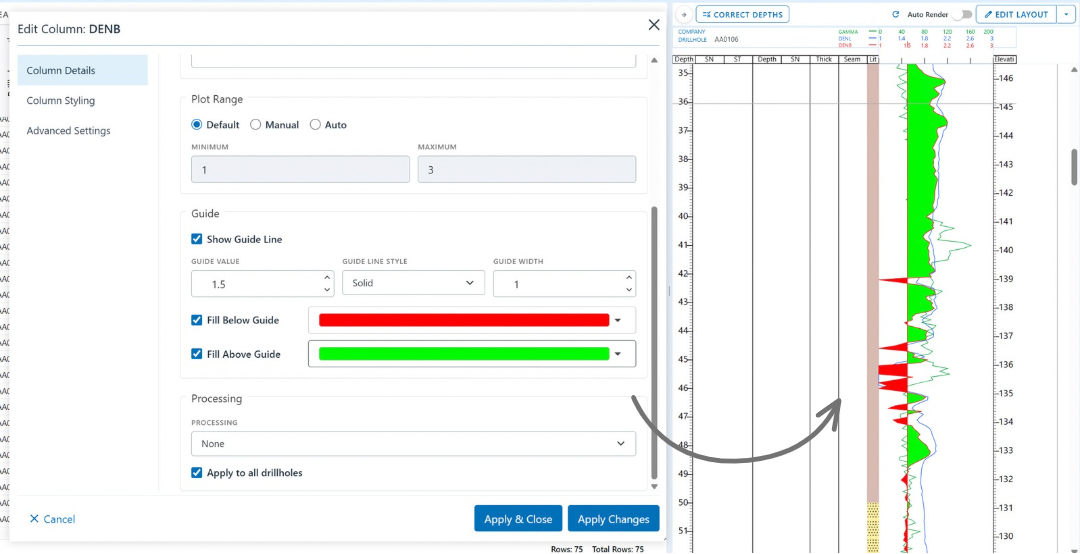
Geophysics curves in 1point can now be smoothed and styled directly on the graphic log. Apply a moving average, from 3 to 13 points, to reduce noise on a noisy curve like gamma, with 9 recommended as an effective default, or use square, cube, or log-10 transformations to bring out large-range values that would otherwise get lost. Set a plot range to 0-200 or define your own, and add a guideline at any value with colour-coded fill above and below it, so it’s obvious at a glance where a curve crosses a threshold. You can also define configurable breaklines directly in the display settings, making it easier to spot geological boundaries or material changes, like a coal roof or carbonaceous zone, across drillholes at a glance. Apply the same styling across every drillhole at once, instead of setting it up one drillhole at a time.
Check seam thickness, recovery, and coal totals at a glance
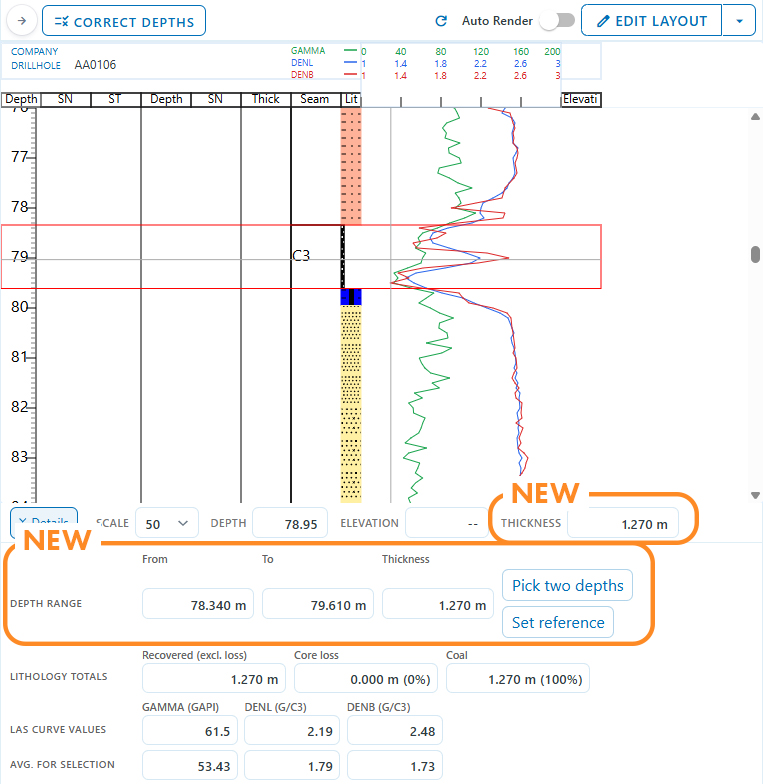
Checking seam ply thickness usually meant switching between the table and a calculator. Now it’s built into 1point’s graphic log. Select intervals in your table, or use pick two depths to measure directly on the graphic log, and thickness shows straight away. Open details for recovered thickness excluding core loss, plus coal and core loss totals in metres and percentages, calculated from whole lithology intervals in your selection. Set reference to hold one measurement while you select another, so you can see exactly how two thicknesses compare.
Smaller updates in v1.8.2
A handful of smaller improvements are also part of this release. The graphic log layout editor now has an “Apply and close” option, so you can save your changes and exit in one step instead of two. The data editor dropdown now shows dictionary colour and pattern directly, making it easier to confirm you’re looking at the right one before you commit to it.
New drillhole profiles let you select specific gamma curves when multiple files are associated with a single drillhole, and the system remembers your display settings for those curves going forward. Correlation now includes an explicit “None” option for horizons, and it’s respected the next time you save and reopen a workspace, so you’re not stuck reselecting it every time.
Creating a sample dispatch now automatically loads any tables it needs into your current drillhole session, without touching the edits you’re already working on. On the lab side, sample dispatch receipts now use a secure, expiring link and ask the recipient to explicitly confirm they’ve received it, so you always know whether a dispatch has genuinely landed, was already confirmed, or the link itself has expired.
Managing drillhole tags is more flexible too. Add and update tags directly from the drillholes table, without needing to open a separate dialog, and restore a tag’s saved table filters, via the new “Load filters for [tag]” button, without losing your current layout. Tag filtering is also more reliable for tags with longer or more complex names, including ones containing commas.
Navigating to the map is quicker too. The Drillholes section of the left navigation now splits into Table View and Map View, so you can jump straight to the map without waiting for the table to load first.
Table rules can now be copied from one table to another, so you don’t need to rebuild the same rule from scratch every time it’s needed elsewhere.
Core photos got some attention as well. The photo viewer in Data Entry now supports folder filtering, does a better job pre-selecting common core photo folders and wet or dry images, and has improved zoom and navigation, including the option to clear a table row’s selection when its depth range has no matching photo. The Core Photos Upload page also adds an upload-folder choice and a searchable, editable drillhole selector, with clearer feedback as photos are prepared and uploaded.
Uploading data is a little more forgiving now too. When uploading an Excel file of drillholes, you can remove individual sheets you don’t want included, instead of importing the whole workbook.
Users can now add or update your phone number directly from your Profile page, and new account registrations include phone verification, helping prevent bot signups and keeping 1point compliant with Australian business regulations. A new workspace control also lets you show or hide navigation and the header together, giving tables and graphic logs more room to work with, useful if you’re deep in Data Entry and want to reclaim every bit of screen space.
Beyond that, every LogCheck validation rule is now built directly into 1point. Admins always retain access to every project and can no longer be unselected during project creation or editing.